A Smarter Way to Create Professional Presentations with AI
Description
Creating a professional presentation can take hours. You need to plan the message, write slide copy, choose layouts, add visuals, and check the final deck. AI can reduce some of this manual work, but it does not remove the need for human review. Current presentation tools can create slides from prompts, documents, and existing presentations. Some can also rewrite text, create images, and adjust slide layouts. Tools such as Plus AI also work with familiar presentation platforms, which can make it easier to create and edit slides within your usual workflow. In this article, we will talk about how AI can help you create professional presentations, what to check before using the final deck, and how to use these tools effectively.
What AI Can Do When Creating Presentations
AI presentation software can help with several parts of the process. You can start with a simple topic and ask the tool to suggest an outline. It can then turn that outline into slides with headings, text, and visual elements. You can also start with material you already have. For example, you may have:
- A Word document
- A PDF
- A research report
- Meeting notes
- A PowerPoint file
- Plain text
- A Google Doc
Some tools can use these sources to build a first draft. Google says Gemini in Slides can create editable presentations from a description and reference files. Microsoft also supports creating presentations from prompts and referenced files in PowerPoint.
This changes the role of AI. Instead of asking it to replace your work, you can use it to handle the first draft.
Why Editable Slides Matter
The format of the final presentation matters. A visually impressive deck is less useful if you cannot easily edit it. This is one reason native Google Slides and PowerPoint workflows can be useful.
Google’s current Gemini feature creates fully editable presentations in Google Slides. Microsoft Copilot also creates and edits presentations directly in PowerPoint.
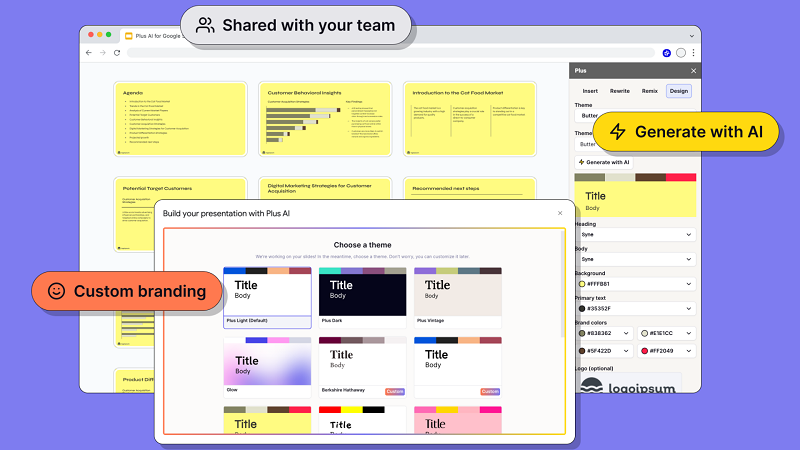
Plus AI follows a similar approach. It works inside Google Slides and PowerPoint rather than requiring you to build the complete presentation in a separate editor. Its current feature set includes presentation generation, slide insertion, rewriting, and slide remixing.
For you, this means the AI draft can remain part of your normal presentation workflow. You can change the wording, move objects, replace images, edit charts, and adjust the layout yourself.
Start With a Clear Outline
AI works better when you give it useful context. A short prompt such as “make a presentation about digital marketing” leaves many decisions open. The result may be too broad.
A better prompt can include:
- The subject
- The audience
- The purpose
- The number of slides
- The tone
- The main points
- Any source material
- Your preferred presentation format
For example, you could ask for a 10-slide presentation for new employees. You could specify that it should explain the company’s customer support process and use information from an internal document.
This gives the AI a clearer structure to follow. Microsoft also recommends giving Copilot detailed instructions and reviewing the generated outline before creating the final slides.
Use Your Own Source Material
One of the most useful applications of AI presentation tools is document-to-slide conversion. Suppose you already have a 15-page report. Starting from a blank presentation means deciding what belongs on each slide yourself.
A document-to-presentation feature can create an initial structure from that material. Plus AI supports converting text and files into presentations. Its documentation lists PDFs, Word documents, PowerPoint files, and text as supported starting material.
This can save time during the early stages. However, you should still check every slide against the original document. AI may leave out important details or place information under the wrong heading.
Keep Human Review in the Process
AI-generated presentations should not be treated as finished work. Microsoft explicitly advises users to review and edit AI-generated presentations. Its documentation notes that generated content should be human-reviewed and edited.
This matters for factual presentations.
Check:
- Numbers
- Dates
- Names
- Statistics
- Quotes
- Sources
- Charts
- Labels
- Images
- Claims made in headlines
You should also check whether the slide says what you actually mean. A grammatically correct sentence can still communicate the wrong idea.
Use AI for Editing, Not Only Generation
The first draft is only one part of presentation work. You may already have a presentation that needs improvement. In this case, AI can help with smaller tasks.
For example, you can ask it to:
- Shorten a long paragraph
- Rewrite a slide title
- Turn text into bullet points
- Change the tone
- Summarize a section
- Reformat information
- Add a missing slide
- Create a clearer structure
Plus AI provides Rewrite and Remix functions for this type of work. Its current documentation describes Remix as a way to change the format of existing slide content, while Rewrite can adjust wording and tone. This can be useful when your content is correct but the slide is difficult to read.
Do Not Let AI Overload Your Slides
A common mistake is asking AI to put too much information on every slide. A presentation is different from a report.
Your report may contain several paragraphs of explanation. Your slide may need only the main point, two or three supporting facts, and a visual. After generating a deck, remove information that does not help the audience understand the point.
You can also split one crowded slide into two or three simpler slides. The goal is not to put everything you know on the screen. The goal is to help the audience follow your message.
Check the Visuals Separately
AI can help create or suggest visuals, but visuals still need review. Check whether an image actually represents the subject. Check charts for correct labels and values. Check icons for consistency.
Google’s Gemini in Slides can generate images and slides, while Microsoft says Copilot can create or replace images within PowerPoint. For business or academic presentations, simple and accurate visuals are often better than decorative ones.
A Practical AI Presentation Workflow
You can keep the process simple:
1. Define the goal.
Know what the audience should understand after the presentation.
2. Gather your source material.
Use reports, notes, documents, or verified data.
3. Create an outline.
Decide the main point of each slide.
4. Generate a first draft.
Let AI handle repetitive writing and layout work.
5. Review the content.
Check facts, numbers, sources, and wording.
6. Edit the slides.
Remove unnecessary text and fix weak layouts.
7. Check the visuals.
Make sure charts, images, and icons support the message.
8. Rehearse the final deck.
A presentation should work when spoken, not only when read.
This workflow keeps AI in a supporting role. You remain responsible for the final message.
Conclusion
AI can make presentation work faster, especially during outlining, drafting, rewriting, and formatting. The strongest workflow is not one where AI creates everything without supervision. It is one where you provide good source material, review the output, and make the final decisions.
Plus Ai is one option for people who want these AI features inside Google Slides or PowerPoint. Its native editing approach can reduce the need to move a draft between different presentation platforms. The bigger lesson is simple: use AI to reduce repetitive slide work, but keep human judgment at the center of the presentation.